


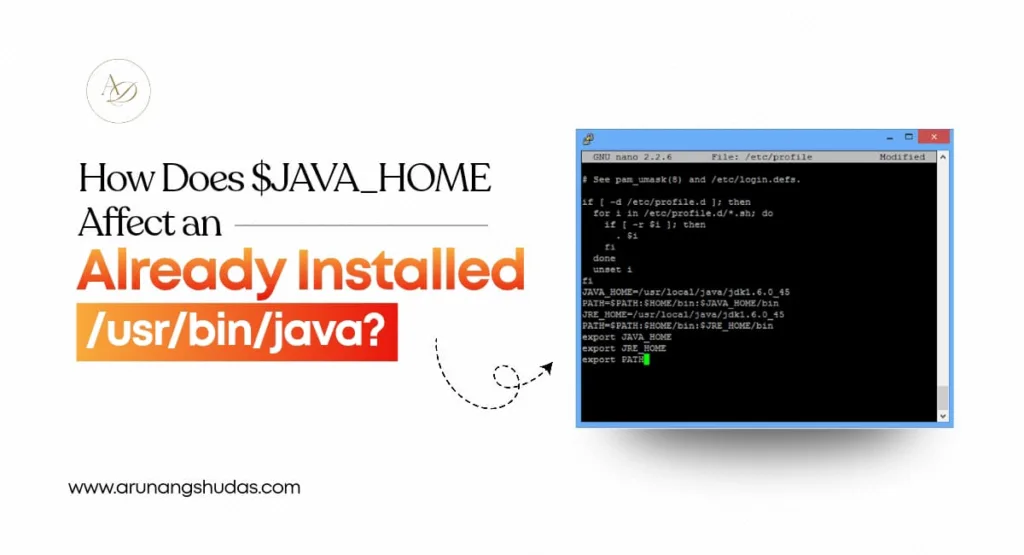
Java is a popular programming language that is widely used worldwide, and it run on the enterprise applications as well as it is used in android and the development of modern backend systems. Java installations on Linux systems usually create confusion, particularly when there is more than one version of Java installed and the user is presented to two versions of java: /usr/bin/java and the Java_home Environment Variable.
Among the most frequently posed questions among the developers, system administrators, and DevOps engineers are:
How does $JAVA_HOME affect an already installed /usr/bin/java?
This paper describes that relationship, teaches proper configuration of Java and gives practical examples. You would also get to know how the Java environment setup is crucial in the present day development, Security Testing, Common CORS Errors management, and File Upload management in Node.js applications.
Understanding Java installation on Linux
In most Linux versions, Java may be installed in various ways:
- System package managers (apt, yum, dnf, pacman) can be used.
- manual installation of oracle JDK.
- Using OpenJDK builds
- More managerial version tools such as SDKMAN.
When the Java is installed through the package manager, it normally leaves a Java binary at:
/usr/bin/java
Nevertheless, this file is not frequently the real Java program.
What /usr/bin/java really is
In most Linux systems:
- The file usr/bin/ja is a symbolic link.
- It refers to a Java binary that is under management by the system alternatives mechanism.
- The real binaries of Java reside in directories such as:
- /usr/lib/jvm/java-11-openjdk-amd64/bin/java
- /usr/lib/jvm/java-17-openjdk/bin/java
This is where $JAVA_HOME comes into play.
What is the Java_home Environment Variable?
Java home Environment Variable is one of the system variables used to inform the applications of the location of Java. Applications use JAVA_HOME to locate: instead of just guessing the binary of Java to use.
- The Java compiler (javac)
- Java libraries
- Runtime tools
- Security and cryptographic modules
Example:
JAVA_HOME=/usr/lib/jvm/java-17-openjdk-amd64
Once set, applications reference:
$JAVA_HOME/bin/java
instead of /usr/bin/java.
Echo $Java_home: checking your current configuration
To see whether JAVA_HOME is set correctly, use:
echo $JAVA_HOME
If nothing prints, it means the variable is not set.
If a path appears, that is the Java installation your environment is pointing to—even if /usr/bin/java points somewhere else.
This single command, Echo $Java_home, is often the first step in debugging Java version issues.
How $JAVA_HOME affects /usr/bin/java
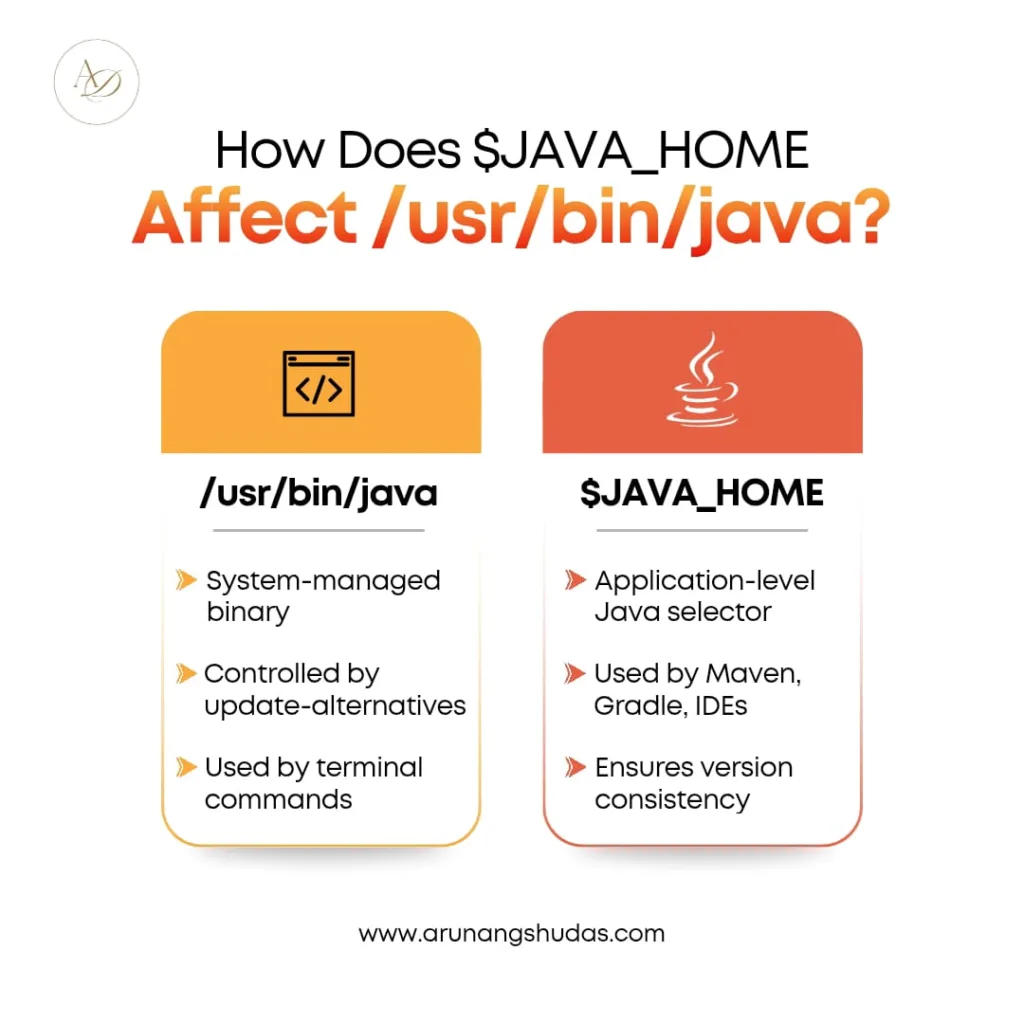
This is the most important concept to understand:
$JAVA_HOME does not change /usr/bin/java directly
Instead, it affects how applications choose Java.
Key behavior differences
| Scenario | Which Java is used? |
| Running java in terminal | /usr/bin/java (via PATH) |
| Running tools that respect JAVA_HOME | $JAVA_HOME/bin/java |
| Maven, Gradle, Tomcat | $JAVA_HOME |
| IDEs (IntelliJ, Eclipse) | $JAVA_HOME |
| Node.js Java-dependent tools | $JAVA_HOME |
So even if /usr/bin/java points to Java 11, and JAVA_HOME points to Java 17, different tools may use different Java versions.
Why this matters in real-world projects
Incorrect Java configuration can cause:
- Application startup failures
- Version mismatch errors
- SSL/TLS issues
- Build failures in CI/CD pipelines
- Unexpected behavior during Security Testing
Example error:
Unsupported major.minor version
This usually means the Java version used at runtime differs from the one used at compile time.
How to Set Java Home Linux properly
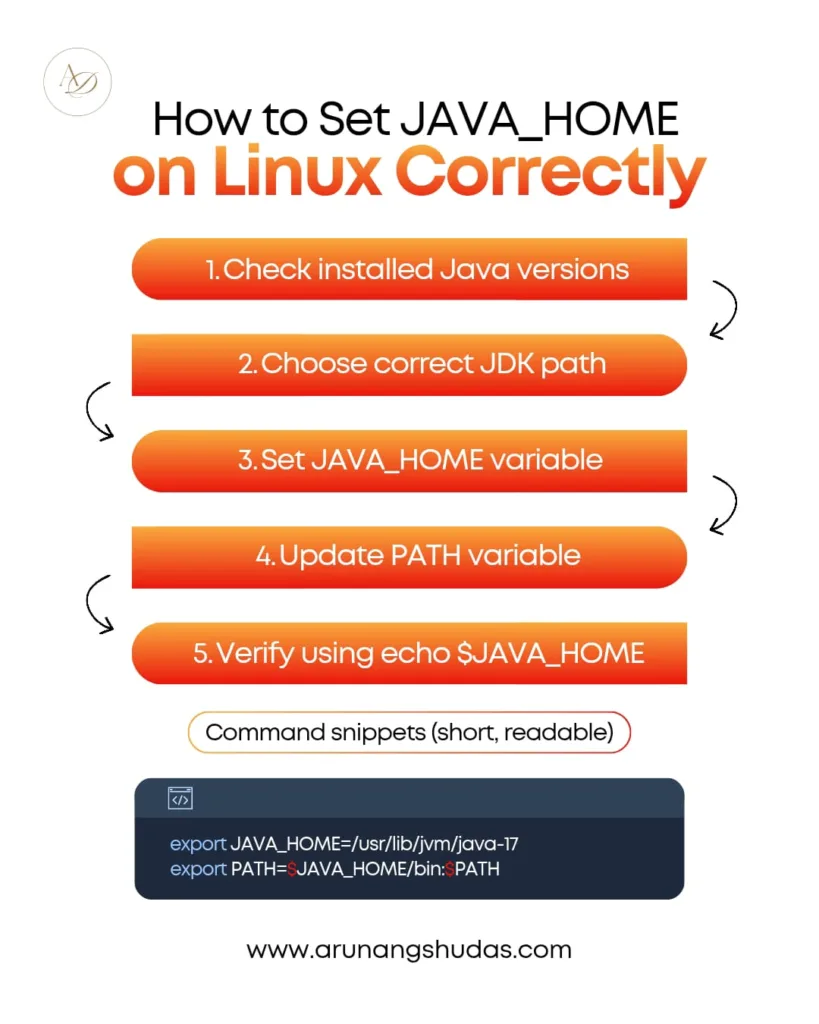
Setting Java Home correctly ensures consistency across tools.
Step 1: Find installed Java versions
ls /usr/lib/jvm/
Example output:
java-8-openjdk-amd64
java-11-openjdk-amd64
java-17-openjdk-amd64
Step 2: Choose the correct Java version
Suppose you want Java 17.
Step 3: How to Set Java_home temporarily
export JAVA_HOME=/usr/lib/jvm/java-17-openjdk-amd64
export PATH=$JAVA_HOME/bin:$PATH
This works until you close the terminal.
How to Set Java_home permanently
Add the following lines to your shell configuration file:
For Bash:
nano ~/.bashrc
For Zsh:
nano ~/.zshrc
Add:
export JAVA_HOME=/usr/lib/jvm/java-17-openjdk-amd64
export PATH=$JAVA_HOME/bin:$PATH
Reload:
source ~/.bashrc
Now run:
echo $JAVA_HOME
java -version
This confirms your Set Java Home Linux configuration is correct.
Relationship between update-alternatives and JAVA_HOME
Linux systems often manage /usr/bin/java using update-alternatives.
Check current alternative:
sudo update-alternatives –config java
This controls what /usr/bin/java points to, but does not automatically update JAVA_HOME.
Best practice
- Use update-alternatives for system-wide defaults
- Use Java_home Environment Variable for application-specific control
Multiple Java versions: common use cases
| Use case | Recommended setup |
| Legacy applications | Java 8 |
| Modern microservices | Java 11 or 17 |
| Spring Boot 3 | Java 17 |
| Android builds | Java 11 |
| CI/CD pipelines | Explicit JAVA_HOME |
This is why understanding How Does $Java_home Affect Already Installed /Usr/bin/java is essential.
Java, Security Testing, and environment variables
Security testing tools often rely on Java:
- OWASP ZAP
- Burp Suite
- SonarQube
- Custom security scanners
If JAVA_HOME points to the wrong version:
- TLS handshake errors may occur
- Weak cipher suites may be enabled
- Tools may fail to launch
Modern Java versions include stronger cryptography defaults, which directly impacts Security Testing accuracy.
Java and Common CORS Errors
While CORS issues are mainly handled at the application or server level, Java backend services often expose APIs consumed by frontend or Node.js applications.
If Java-based servers (Spring Boot, Jakarta EE) use the wrong Java version:
- HTTP headers may behave differently
- Older Java versions may lack modern security headers
- Debugging Common CORS Errors becomes harder
Correct JAVA_HOME ensures consistent server behavior across environments.
Java dependency in File Uploads in Node.js
You might wonder: What does Java have to do with Node.js file uploads?
In real-world projects:
- Node.js apps may call Java-based microservices
- PDF, image, or virus scanning tools may rely on Java
- CI pipelines may use Java-based analyzers during file processing
If your Node.js application handles File Uploads in Node.js and triggers Java tools:
- Incorrect JAVA_HOME can break background processing
- File validation may fail
- Security scans may not run properly
Thus, Java configuration indirectly affects Node.js workflows.
Common mistakes developers make
1. Assuming /usr/bin/java is enough
Many tools ignore /usr/bin/java and rely entirely on JAVA_HOME.
2. Forgetting to update PATH
Setting JAVA_HOME without updating PATH leads to confusion.
3. Multiple conflicting exports
Exporting JAVA_HOME in multiple files causes unpredictable behavior.
4. Ignoring CI/CD environments
Local configuration may work, but pipelines fail due to missing JAVA_HOME.
Best practices for Java environment management
- Always define Java_home Environment Variable
- Use absolute paths, not symlinks
- Document Java versions per project
- Validate using Echo $Java_home
- Align Java version across dev, staging, and production
- Review Java version during Security Testing
Example: fixing a real issue
Problem
Application builds successfully but fails at runtime.
Diagnosis
echo $JAVA_HOME
java -version
Output mismatch:
- JAVA_HOME: Java 8
- /usr/bin/java: Java 17
Solution
Set correct Java Home Linux:
export JAVA_HOME=/usr/lib/jvm/java-17-openjdk-amd64
export PATH=$JAVA_HOME/bin:$PATH
Restart application → Issue resolved.
Summary: key takeaways
- $JAVA_HOME does not overwrite /usr/bin/java
- Applications often prioritize Java_home Environment Variable
- /usr/bin/java is usually a symlink
- Always verify using Echo $Java_home
- Correct setup improves stability, security, and performance
- Java configuration affects backend APIs, Security Testing, Common CORS Errors, and even File Uploads in Node.js
How Arunangshudas Guides Us Through Java Home Configuration
Arunangshudas provides clear, practical guidance to help developers and system administrators understand the real impact of $JAVA_HOME on Linux environments. Through step-by-step explanations, real-world examples, and best practices, Arunangshudas simplifies complex concepts such as Java version conflicts, environment variable management, and the relationship between /usr/bin/java and the Java_home Environment Variable. His approach focuses on accuracy, security, and performance, ensuring that readers can confidently Set Java Home Linux without breaking existing setups. By following his guidance, teams can avoid common configuration mistakes, improve system stability, and build secure, scalable applications with the right Java foundation.

Conclusion
Understanding How Does $Java_home Affect Already Installed /Usr/bin/java is essential for maintaining stable, secure, and predictable Java environments on Linux systems. While /usr/bin/java represents the system default, modern applications and development tools rely heavily on the Java_home Environment Variable to locate the correct Java runtime.
By properly configuring Set Java Home Linux, validating with Echo $Java_home, and aligning Java versions across development and production, you can prevent version conflicts, improve application performance, and strengthen system security. This becomes especially important when dealing with backend APIs, Security Testing, resolving Common CORS Errors, and managing integrations such as File Uploads in Node.js.
A well-configured Java environment is not just a setup task—it is a foundational step toward reliable software development and deployment.
Frequently Asked Questions (FAQs)
1. Does setting JAVA_HOME change /usr/bin/java automatically?
No. Setting the Java_home Environment Variable does not modify /usr/bin/java. The /usr/bin/java path is usually managed by the system’s alternatives mechanism, while JAVA_HOME is used by applications and build tools to determine which Java version to use.
2. Why do some tools ignore /usr/bin/java and use JAVA_HOME instead?
Many tools like Maven, Gradle, Tomcat, Jenkins, and IDEs are designed to prioritize JAVA_HOME for reliability and version consistency. This ensures the correct Java libraries and runtime are used, especially in enterprise and production environments.
3. How can I verify which Java version my system is using?
You can verify Java usage by running:
echo $JAVA_HOME
java -version
Using Echo $Java_home helps confirm the configured Java path, while java -version shows the active runtime. Both should ideally point to the same Java version.
4. What happens if multiple Java versions are installed on Linux?
When multiple Java versions exist, /usr/bin/java may point to one version while JAVA_HOME points to another. This can cause version conflicts, build errors, or runtime failures. Properly Set Java Home Linux to ensure consistent behavior.
5. Is JAVA_HOME important for security-related tools?
Yes, Many Security Testing tools depend on Java. Incorrect Java configuration can lead to SSL issues, outdated cryptography, or tool failures. Using a modern Java version through How to Set Java_home ensures secure and reliable testing results.
6. Can incorrect JAVA_HOME affect Node.js applications?
Indirectly, yes. If Node.js projects rely on Java-based services or tools—such as for scanning, reporting, or File Uploads in Node.js workflows—misconfigured Java paths may cause background jobs or integrations to fail.
