


If you want to learn how small businesses can automate workflows using AI, you are not alone. In 2026, more than 62% of small business owners report feeling overwhelmed by repetitive daily tasks—everything from data entry and invoice processing to customer follow‑ups and social media scheduling.
The good news? Artificial intelligence has become affordable, user‑friendly, and powerful enough to handle these chores for you. This guide will show you exactly how small businesses can automate workflows using AI without hiring a developer or breaking the bank.
We will cover the best tools, real‑world examples, and a special lifetime deal on AI AssistWorks that can save you thousands of dollars.
Table of Contents
Why Small Businesses Need Workflow Automation Now
Before diving into the how, let’s look at the why. Small business owners wear too many hats. You handle sales, marketing, customer support, accounting, and product delivery—often alone or with a tiny team. Manual workflows lead to burnout, errors, and missed opportunities. According to a 2025 report, small businesses that automate just three core workflows grow revenue 33% faster than those that do not. And with AI, automation is no longer expensive or complex.
When you understand how small businesses can automate workflows using AI, you unlock:
- More time (10–15 hours per week returned to you).
- Fewer mistakes (AI doesn’t get tired or copy the wrong number).
- Lower costs (automate tasks that would otherwise require a part‑time employee).
Let’s break down the exact steps and tools.
Step 1: Identify Your Most Repetitive Tasks
The first part of how small businesses can automate workflows using AI is knowing what to automate. Look for tasks that:
- Happen daily or weekly.
- Follow clear rules (if X happens, do Y).
- Take up more than 30 minutes of your time each day.
Common examples:
- Sorting emails and routing customer inquiries.
- Entering data from forms into spreadsheets.
- Generating invoices and following up on late payments.
- Posting the same content across multiple social platforms.
- Summarizing meeting notes or client feedback.
Once you have your list, you can match each task to the right AI tool.
Step 2: Choose the Right AI Automation Tools
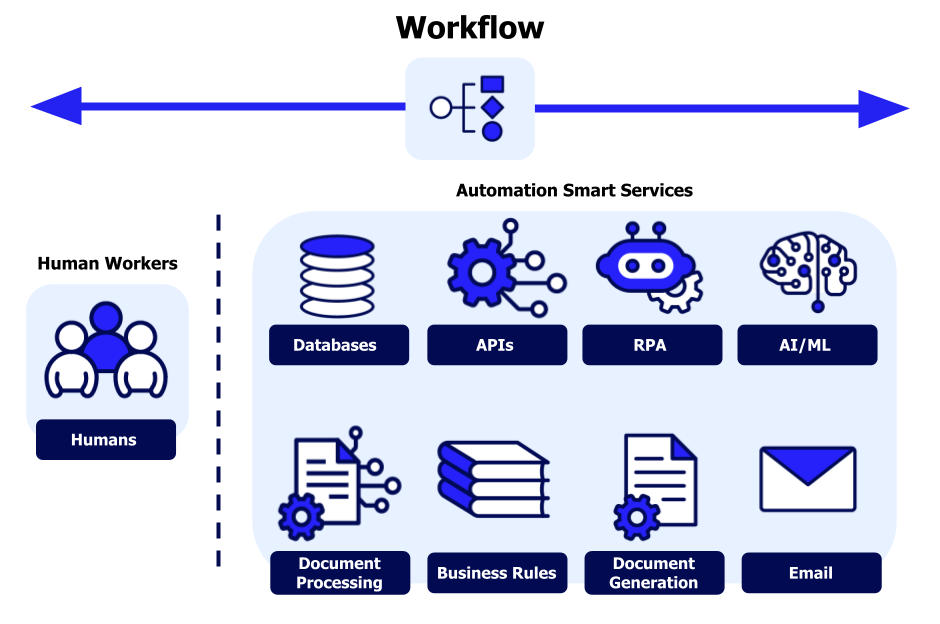
Not all AI is created equal. For small businesses, the best solutions are affordable, integrate with tools you already use (like Gmail, Google Sheets, Slack, or QuickBooks), and require zero coding. Below are the top three categories.
2.1 All‑in‑One Workspace AI: AI AssistWorks
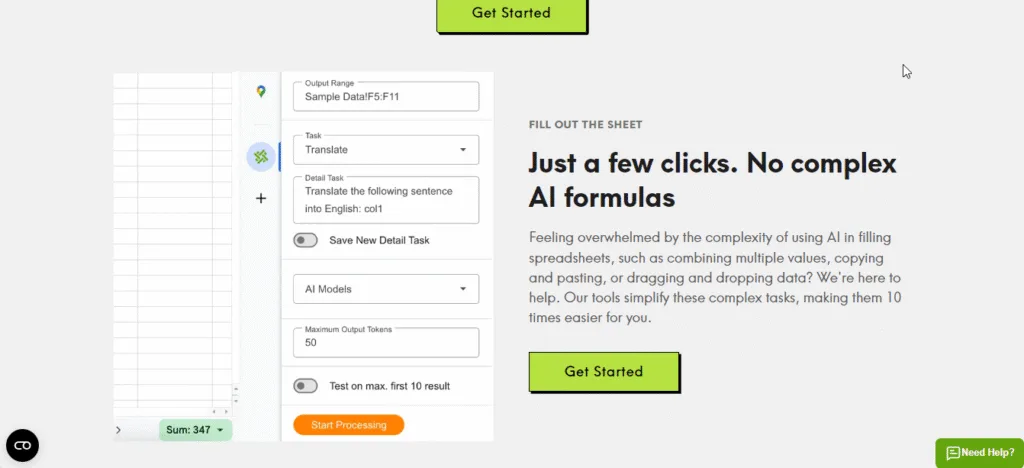
If you use Google Workspace (Docs, Sheets, Slides, Gmail), AI AssistWorks is hands‑down the most powerful way to automate workflows. It connects over 100 AI models (GPT‑4 Turbo, Claude, Gemini, Llama) directly inside your spreadsheets and documents.
What you can automate with AI AssistWorks:
- Bulk data processing: Clean 5,000 rows of customer addresses or phone numbers in 30 seconds.
- Email drafting & sorting: Generate personalized follow‑ups based on customer purchase history stored in Sheets.
- Report generation: Pull data from multiple sheets, summarize it, and create a presentation slide deck with one prompt.
- Content repurposing: Turn a long blog post into 20 social media captions, all inside Google Sheets.
Pricing that works for small businesses:
- Monthly plan starts at $3/month.
- Lifetime Plus Plan (best value): Normally $480, but you can get it for a one‑time payment of $480 (94% off). You bring your own API key (e.g., OpenAI), so you only pay for what you actually use. Most small businesses spend less than $10 per year on API calls.
Get AI AssistWorks Lifetime Access Here – Save 94%
2.2 Email & Customer Support Automation
Tools like Zapier (connects 6,000+ apps) and Make (visual automation builder) let you create “if this, then that” workflows. For example:
- When a new lead fills out a Google Form → automatically add them to your email list (Mailchimp) and send a welcome email.
- When a customer replies with “unsubscribe” → remove them from your CRM and mark them as inactive.
These tools work beautifully alongside AI AssistWorks. Use AI AssistWorks to enrich the data first, then let Zapier move it.
2.3 Accounting & Invoice Automation
QuickBooks AI and Xero now include smart invoice matching and expense categorization. Connect them to AI AssistWorks to pull reports into Google Sheets for monthly analysis without manual copy‑paste.
How Small Businesses Can Automate Workflows Using AI: A Real Example
Let’s walk through a concrete case. Imagine you run a small e‑commerce store selling handmade candles. Every day you:
- Receive 20–30 customer support emails.
- Manually copy new orders from your website into a shipping spreadsheet.
- Generate and send invoices to wholesale clients.
Before AI: This takes you 2 hours per day, and you often make typos in shipping addresses.
After applying how small businesses can automate workflows using AI with the stack above:
- Use AI AssistWorks inside Google Sheets to parse incoming order emails (connected via Gmail). It extracts customer name, address, and product SKU automatically.
- That same spreadsheet triggers Zapier to send the order data to your shipping label printer.
- AI AssistWorks also generates a personalized “thank you” email draft for each customer, which you review and send in one click.
Result: The same daily orders now take 15 minutes instead of 2 hours. You save 1.75 hours every day—almost 45 hours per month.
Step 3: Build Your First Automation in Under 10 Minutes
You do not need to be a programmer. Here is a simple automation you can set up today using AI AssistWorks.
Goal: Automatically summarize customer feedback from a Google Form into a clean report.
- Install AI AssistWorks from the Google Workspace Marketplace.
- Open the Google Sheet where your form responses land.
- In a new column, type =AI_ASSIST(“Summarize this feedback in one sentence: ” & A2) (where A2 contains the raw feedback).
- Drag the formula down to all rows. AI AssistWorks will use GPT to summarize every single response instantly.
- (Optional) Use another formula to categorize feedback as “positive,” “negative,” or “neutral.”
That is it. You have just automated a task that would normally take 30 minutes of reading and typing.
Common Mistakes to Avoid When Automating with AI
Even when you understand how small businesses can automate workflows using AI, mistakes happen. Avoid these three:
- Automating a broken process first. Fix the manual workflow before adding AI, or you will just automate inefficiency.
- Using too many separate tools. Stick to an all‑in‑one solution like AI AssistWorks for spreadsheet and doc tasks, then add only one or two connectors (Zapier/Make).
- Forgetting about data privacy. Use reputable tools with strong security. AI AssistWorks uses your own API keys, so your data never passes through their servers unnecessarily.
Final Stack for Small Business Workflow Automation (2026)
| Task Type | Recommended Tool | Why |
|---|---|---|
| Spreadsheet data cleaning, bulk content, reporting | AI AssistWorks (lifetime deal) | Works inside Google Sheets/Docs, supports 100+ AI models, pay once |
| App‑to‑app automation | Zapier or Make | Connects thousands of apps without coding |
| Email & customer support routing | Gmail + AI AssistWorks + Zapier | Automate sorting and drafting replies |
| Accounting & invoicing | QuickBooks AI (with AI AssistWorks for reporting) | Pulls data into custom dashboards |
Get Started Today with AI AssistWorks
The fastest way to implement how small businesses can automate workflows using AI is to start with the tool that lives where you already work: Google Sheets and Docs. AI AssistWorks turns your spreadsheets into an automation engine. The lifetime deal at $24.99(regular $480) is a no‑brainer for any small business owner.
Claim Your AI AssistWorks Lifetime Deal – 94% Off
Stop wasting hours on repetitive tasks. Let AI do the boring work so you can focus on growing your business.
Frequently Asked Questions (FAQs)
Q1: Do I need technical skills to use AI AssistWorks for workflow automation?
No. AI AssistWorks uses plain English formulas inside Google Sheets. You type things like =AI_ASSIST(“Extract the name from this text: ” & A1). If you can use Excel or Google Sheets basics, you can use AI AssistWorks.
Q2: Can AI AssistWorks work with my existing CRM or email marketing tool?
Yes. Since it lives inside Google Sheets, you can import/export data from any CRM that works with CSV or Google Sheets. You can also use Zapier alongside AI AssistWorks: AI AssistWorks processes data inside Sheets, then Zapier sends that processed data to your CRM.
Q3: How much does the AI API usage actually cost for a small business?
Very little. For typical small business tasks (cleaning 5,000 rows of data, generating 500 email drafts, summarizing 200 support tickets), you will spend between 5 and 15 per year on OpenAI API credits. The AI AssistWorks lifetime deal eliminates the monthly software fee, so you only pay for the AI model usage itself.
Q4: What if I already use Zapier? Do I still need AI AssistWorks?
Yes, for different purposes. Zapier moves data between apps. AI AssistWorks creates or transforms data inside your spreadsheets (summarizing, categorizing, generating text). They work perfectly together. For example, use Zapier to send new form entries to a Google Sheet, then use AI AssistWorks to enrich that data, then use Zapier again to send the enriched data to your email tool.
