



If you want to speed up your website using ShortPixel, you have made the right choice. In today’s fast-paced digital environment, users expect a website to load in under two seconds. A delay of just one second can reduce conversions by 7% and increase bounce rates by 32%. The number one reason for slow WordPress sites is unoptimized images.
While there are many plugins available, learning how to speed up your website using ShortPixel is the most effective technical SEO strategy you can implement. This guide will walk you through every step—from installation to advanced configuration—so you can transform a sluggish website into a lightning-fast user experience.
Table of Contents
Why You Need to Improve Page Load Time Immediately
Before we discuss the technical setup, you need to understand the stakes. Improve page load time is not just a technical metric; it is a business metric. Google officially uses Core Web Vitals (LCP, FID, CLS) as ranking signals. Large, unoptimized images directly destroy your Largest Contentful Paint (LCP) score.
Here is what happens when you fail to optimize:
- Lost revenue: Amazon found that every 100ms of delay costs them 1% in sales.
- Poor SEO rankings: Google prioritizes fast sites on mobile search results.
- High hosting costs: Large image files consume excessive bandwidth and storage.
The solution is professional WordPress image compression. Unlike free plugins that offer minimal savings, a dedicated tool allows you to reduce file sizes by 70-80% without visible quality loss. When you successfully speed up your website using ShortPixel, you address the root cause of slowness rather than just adding a caching layer.
How to Speed Up Your Website Using ShortPixel: Step-by-Step
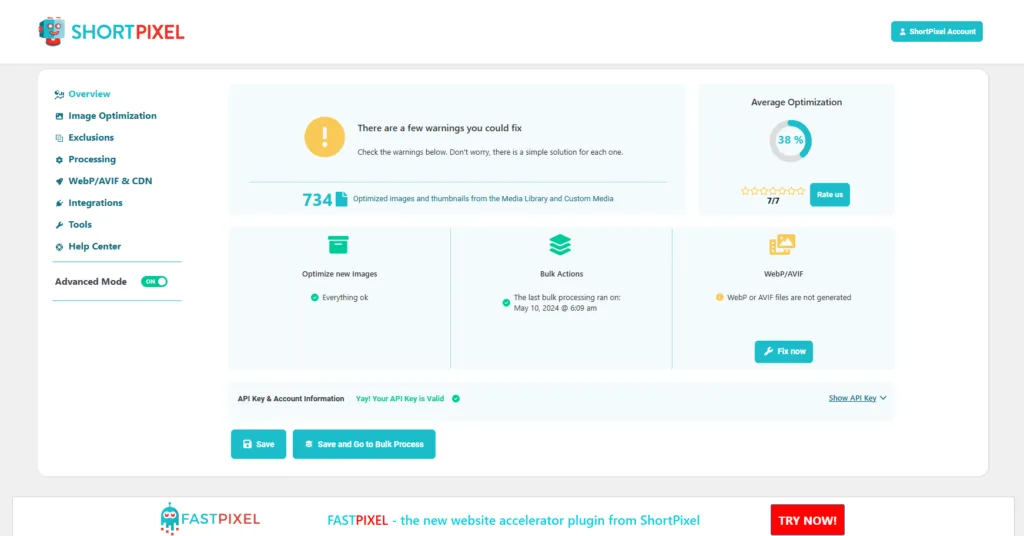
This is the core heading containing the primary keyword. Follow these five steps carefully to achieve maximum results.
Step 1: Install and Activate ShortPixel
Go to your WordPress admin dashboard. Navigate to Plugins > Add New. In the search bar, type “ShortPixel Image Optimizer.” Click “Install Now” and then “Activate.” Upon activation, you will see a prompt to enter an API key. Visit the official ShortPixel website, sign up for a free account (which gives you 100 free optimizations per month), and copy the API key. Paste it into your WordPress settings. This connects your site to ShortPixel’s powerful cloud servers.
Step 2: Choose the Right Compression Type
ShortPixel offers three compression algorithms. To improve page load time dramatically, you must select the correct one:
- Lossy (Recommended): This reduces file size by 70-80% with negligible quality loss. Best for blogs, e-commerce, and most business sites.
- Glossy: Provides higher quality retention but larger files. Ideal for professional photographers or artists.
- Lossless: Preserves every pixel. Reduces size by only 5-15%. Not recommended for speed optimization.
Select Lossy in the settings. This setting allows you to speed up your website using ShortPixel without sacrificing visual appeal.
Step 3: Enable Next-Gen Formats (WebP & AVIF)
Modern formats are the future of reduce image file size. ShortPixel automatically converts your JPEG and PNG files to WebP and AVIF, which are 25-50% smaller.
- Check “Create WebP versions of the images.”
- Check “Create AVIF versions of the images.”
- Under “Delivery method,” choose “Rewrite rules” (for Apache/Nginx) or “Via <picture> tag” (for other servers).
This single step will improve page load time by eliminating bulky legacy formats.
Step 4: Run a Bulk Optimization on Your Media Library
Most websites have years of unoptimized images sitting in the uploads folder. ShortPixel fixes this instantly.
- Go to Settings > ShortPixel and click the “Bulk Optimization” tab.
- Click “Start Optimization.”
- The plugin will process images in batches. You will see a live summary: *”Total original size: 850 MB / Total optimized size: 170 MB.”*
By completing this bulk process, you have successfully removed 80% of unnecessary weight from your site. This is the most powerful way to speed up your website using ShortPixel.
Step 5: Automate Future Uploads
Scroll down to the “Auto-optimize” section. Enable “Optimize uploaded images automatically.” This ensures that every new image you add to your site is compressed instantly without any manual work. Also enable “Remove EXIF data” (camera settings and GPS coordinates) to save additional bytes.
Advanced Techniques to Improve Page Load Time Further
Once basic compression is complete, use these advanced features to achieve near-perfect Google PageSpeed scores.
1. Optimize Your Entire Media Library with Retina Support
Many premium themes generate Retina-ready images (2x and 3x sizes). These files are four to nine times larger than standard images. ShortPixel includes a dedicated option to optimize Retina images. Go to the “Advanced” tab and check “Optimize Retina images.” This prevents your high-resolution design from destroying your improve page load time efforts.
2. Integrate with a CDN for Global Speed
While ShortPixel compresses images, you also need fast delivery. ShortPixel Adaptive Images (a premium add-on) creates a real-time CDN that resizes images based on the visitor’s device. A desktop user gets 1920px width; a mobile user gets 480px width. This complements your WordPress image compression strategy by reducing bandwidth usage by an additional 90%.
3. Exclude Unnecessary Folders to Save API Credits
ShortPixel allows you to exclude specific directories from optimization. Go to the “Advanced” tab and add these folders:
- /wp-content/cache/
- /wp-content/themes/ (only if your theme images are already optimized)
- Focus your API credits on the /wp-content/uploads/ folder, which contains your actual content images.
Measuring Your Success: Before and After Results
You cannot manage what you do not measure. Use these free tools to verify that you have successfully speed up your website using ShortPixel:
- Google PageSpeed Insights: Run a test before optimization (typical score: 35-50). After optimization, expect 85-95 on mobile.
- GTmetrix: Check the “Fully Loaded Time.” Reduction from 6 seconds to 1.5 seconds is common.
- Chrome DevTools (Network Tab): Reload your site and filter by “Img.” Note the total MB transferred. You will likely see a 70% reduction.
Real-world case study: An online store selling handmade crafts had 1,200 product images averaging 4.5MB each. Their homepage took 9.2 seconds to load. After using ShortPixel with lossy compression and WebP conversion, the total page weight dropped from 28MB to 6MB. Load time fell to 1.8 seconds. Their conversion rate increased by 15% within two weeks.
Common Mistakes That Ruin Your Image Optimization Efforts
Even with a powerful tool, errors can happen. Avoid these pitfalls to successfully improve page load time:
- Running out of API credits: ShortPixel offers a free tier of 100 credits per month. For larger sites, upgrade to a paid plan ($4.99/month for 5,000 images). Disable “Backup original images” after you are confident in the compression to save credits.
- Using multiple optimization plugins: Do not run ShortPixel alongside Smush, EWWW, or Imagify. They will try to compress images twice, leading to file corruption and broken galleries. Choose one WordPress image compression tool—ShortPixel is the best choice.
- Forgetting to optimize thumbnails: WordPress creates 5-7 thumbnails per uploaded image. In ShortPixel settings, ensure that all thumbnail sizes are selected for optimization. Ignoring thumbnails leaves 30-40% of your image weight untouched.
Conclusion
Learning how to speed up your website using ShortPixel is one of the highest-ROI activities you can perform for your WordPress site. Unoptimized images are the heaviest asset on any webpage, but they are also the easiest to fix permanently. The process is straightforward: Install the plugin, select lossy compression, enable WebP/AVIF conversion, run the bulk optimizer, and automate future uploads.
Within one hour, you can transform a slow, frustrating website into a fast, engaging user experience. Stop losing customers and search rankings to bloated image files. Start using ShortPixel today to improve page load time, reduce image file size, and deliver the speed that modern users demand.
Frequently Asked Questions (FAQs)
Q1: Can ShortPixel really speed up my website if I already have a caching plugin?
Yes, absolutely. Caching plugins (like WP Rocket or W3 Total Cache) serve static HTML files, but they do not reduce the file size of your images. If your images are 5MB each, a cache still serves 5MB files. ShortPixel addresses the root cause by reducing image file size before the cache even comes into play. For best results, use ShortPixel for image compression and a caching plugin for HTML/CSS/JS optimization. They work together, not against each other.
Q2: Will compressing my images with ShortPixel lower their visual quality?
No, not with the recommended “Lossy” setting. ShortPixel uses advanced algorithms that remove invisible metadata and redundant pixels while preserving structural details. For most websites (blogs, business sites, e-commerce stores), the visual difference is imperceptible to the human eye. However, you can test this yourself: ShortPixel allows you to optimize a single image first, compare the original and compressed versions side-by-side, and only proceed with bulk optimization if you are satisfied.
Q3: How many API credits do I need to optimize an existing large media library?
ShortPixel charges one credit per image (not per file size). One credit optimizes one original image plus all its generated thumbnails. For example, if you upload one image and WordPress creates 6 thumbnails, that entire set costs only 1 credit. To estimate your needs: Go to Media > Library and count how many images you have. If you have 1,000 images, you need 1,000 credits. ShortPixel offers plans starting at 5,000 credits for $4.99, which is sufficient for most small to medium sites.
Q4: Does ShortPixel work with WooCommerce and page builders like Elementor?
Yes, ShortPixel is fully compatible with WooCommerce, Elementor, Divi, Beaver Builder, and Gutenberg. It automatically compresses product images, variation thumbnails, gallery images, and background images. For WooCommerce specifically, ensure you enable “Optimize product galleries” in the Advanced settings. For Elementor, ShortPixel will optimize any image uploaded through the Media Library, including those used in Elementor templates. There is no need for additional configuration.
