


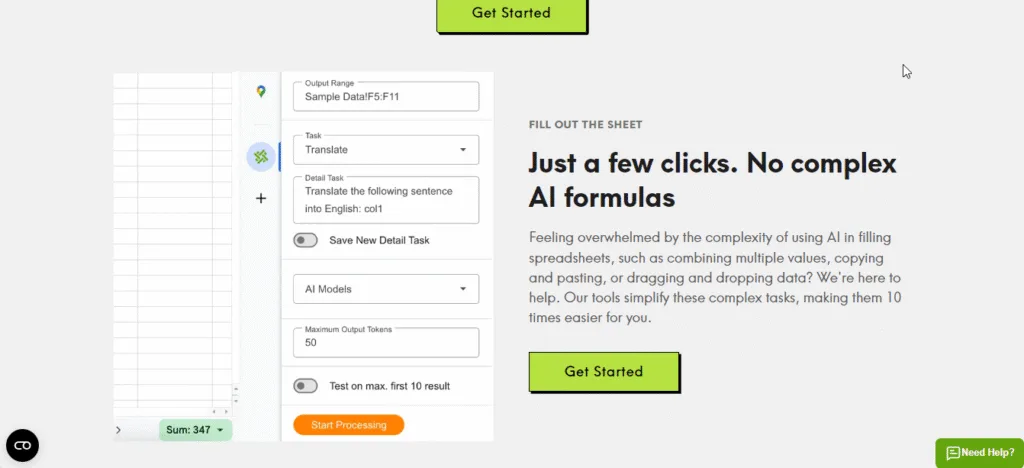
Welcome to my in‑depth AI AssistWorks Review. If you spend hours copying and pasting data between ChatGPT, Google Sheets, and Docs, you need to read this. In this Review, I will cover every feature, break down the pricing (including a shocking lifetime deal), and show you real use cases for freelancers, small business owners, and creators.
By the end, you will know exactly if this tool belongs in your daily workflow.
Table of Contents
What Is AI AssistWorks? (Overview)
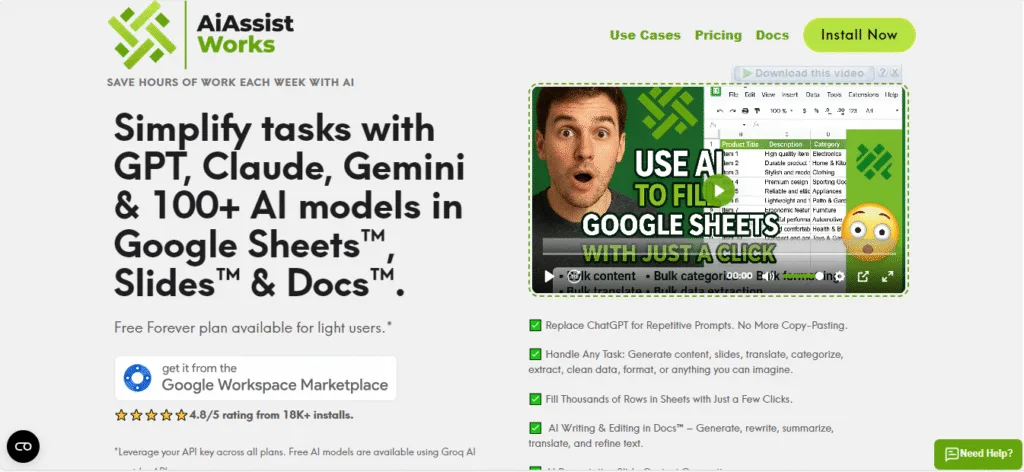
Before diving into this AI AssistWorks Review, let’s quickly define the product. AI AssistWorks is a Google Workspace add‑on that integrates over 100 AI models—GPT‑4 Turbo, Claude 3.5 Sonnet, Gemini 1.5 Pro, Llama 3, and more—directly into Google Sheets, Docs, and Slides.
Instead of switching between tabs, you run AI functions right inside your spreadsheet cells. Want to summarize 5,000 customer reviews? One formula. Translate a product list into 10 languages? One formula. It turns Google Sheets into a supercharged automation engine.
Key capabilities at a glance:
- Batch processing (thousands of rows at once)
- Custom formulas like =AI_ASSIST() and =AI_EXTRACT()
- Support for text generation, data extraction, sentiment analysis, translation, and more
- Works with your own API keys (OpenAI, Anthropic, Google, etc.) – you pay only for what you use
Now let’s get into the details of this AI AssistWorks Review.
AI AssistWorks Review: Core Features That Matter
1. Seamless Google Sheets Integration
You type =AI_ASSIST(“Your prompt”, A2) in any cell, and the AI returns the result instantly. No new interface to learn. This works for sentiment analysis, keyword extraction, summarization, translation, grammar correction, and content rewriting.
2. 100+ AI Models in One Place
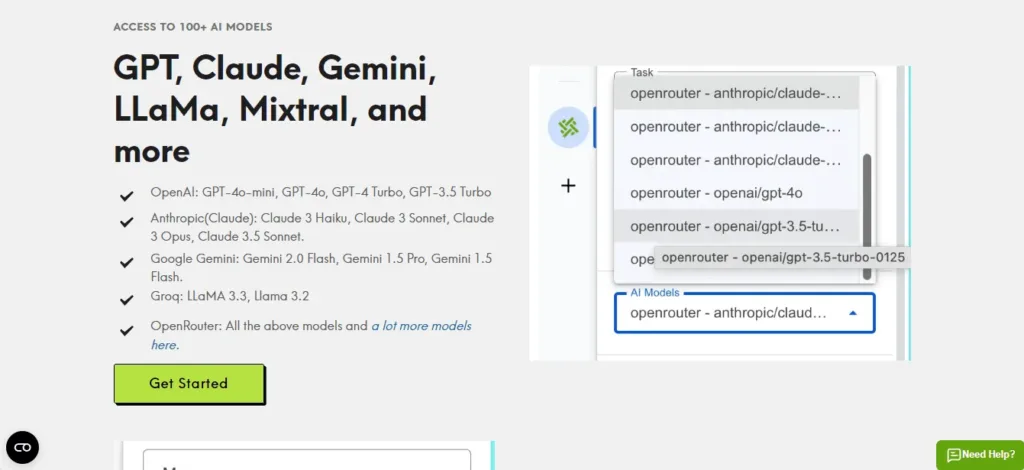
Unlike most tools that lock you into one provider, AI AssistWorks lets you switch between models on the fly. Use GPT‑4 for creative writing, Claude for long‑form reasoning, and Gemini for multilingual tasks—all from the same spreadsheet.
3. Batch Processing (The Real Game Changer)
Apply an AI formula to an entire column (1,000, 10,000, or more rows) with a single drag. Examples:
- Generate 5,000 SEO meta descriptions in under two minutes.
- Extract phone numbers and email addresses from 2,000 messy text fields.
- Classify 10,000 support tickets as “urgent,” “normal,” or “low priority.”
4. Google Docs & Slides Support
Inside Google Docs, a sidebar lets you highlight text and say “rewrite more professionally” or “expand this bullet point.” Inside Google Slides, generate entire presentation decks from a single prompt—complete with images and speaker notes.
5. No‑Code Automation
You never need to write scripts. The syntax is plain English. Examples:
- =AI_ASSIST(“Extract the customer’s name from this email: ” & A2)
- =AI_ASSIST(“Translate this to Spanish: ” & B2)
Anyone who can use basic Excel can master AI AssistWorks in under 10 minutes.
Pricing (The Lifetime Deal You Want)
Pricing is often the deciding factor. Here are your options:
Monthly Subscription
- Starts at $3/month for the Basic plan (limited AI calls).
- Higher tiers go up to $29/month for unlimited calls.
Lifetime Plus Plan (Best Value – 94% Off)
- Regular value: $480
- Current one‑time price: $24.99
- What you get: Permanent access to all premium features of AI AssistWorks. You still need your own API key (e.g., from OpenAI), but you never pay another monthly fee to AI AssistWorks again.
Important clarification: The lifetime plan covers the software forever. The AI model usage (GPT, Claude, etc.) is paid directly to the AI provider through your API key. Most small users spend 5–15 per year on API calls. Compare that to paying 20–50 monthly for other AI tools—the savings are enormous.
Get the AI AssistWorks Lifetime Deal (Only $24.99) – 94% Off
For most readers of this AI AssistWorks Review, the lifetime deal is a no‑brainer. It pays for itself within two months compared to the monthly plan.
Real‑World Use Cases

Let’s move from features to practical examples. Here are three ways people are using AI AssistWorks today.
Use Case 1: E‑commerce Product Enrichment
You have 2,000 products with basic titles and descriptions. You want SEO‑friendly meta titles, meta descriptions, and bullet points.
Without AI AssistWorks: Hire a freelancer for 500 or spend 40 hours manually. **With AI AssistWorks:** Paste your product list into Google Sheets. In column D, type `=AI_ASSIST(“Write a 60-character SEO title for: ” & A2)`. Drag down. Repeat for descriptions. Done in 15 minutes. API cost: ~2.
Use Case 2: Customer Feedback Analysis
You have 1,500 survey responses in a Google Sheet. You need to categorize each as positive, neutral, or negative and extract the main theme.
Formula: =AI_ASSIST(“Classify sentiment and extract key theme. Response: ” & A2)
Result: “Positive – loves fast shipping” or “Negative – packaging damaged.” Manual work eliminated.
Use Case 3: Social Media Content Calendar
You have 50 blog post titles. You want to turn each into 5 LinkedIn posts, 3 Twitter threads, and 1 Instagram caption.
Process: Use AI AssistWorks to generate all variations in a single sheet. What used to take a full day now takes 20 minutes.
AI AssistWorks Review: Pros and Cons
No honest AI AssistWorks Review would skip the drawbacks. Here is a balanced look.
Pros
- Insanely affordable lifetime deal ($24.99 one‑time)
- Works inside Google Workspace – no context switching
- Supports 100+ AI models – not locked into one provider
- Batch processing – handles thousands of rows
- No coding required – plain English formulas
- Pay only for what you use (via your own API keys)
Cons
- Requires an API key from OpenAI/Anthropic etc. (free to sign up, but you need to add credits)
- Not a standalone app – you must use Google Sheets/Docs
- Advanced users may want more control (e.g., custom temperature settings – though you can pass parameters)
- Lifetime deal price could change (it is a limited offer)
For most small business owners, freelancers, and creators, the pros massively outweigh the cons.
Frequently Asked Questions (FAQs)
Q1: Do I need a paid Google Workspace account to use AI AssistWorks?
No. It works with the free personal Gmail account (Google Sheets/Docs are free). Just install the add‑on from the Google Workspace Marketplace.
Q2: Can AI AssistWorks generate images or videos?
Not directly. It focuses on text and data processing within Google Workspace. For image generation, you would use DALL‑E or Midjourney, but you can use AI AssistWorks to generate prompts in bulk and then feed them into those tools.
Q3: Is my data safe when using AI AssistWorks?
Yes. Because you use your own API keys, your data goes directly from Google Sheets to the AI provider (OpenAI, etc.) – it does not pass through AI AssistWorks servers. The add‑on only facilitates the connection. This architecture is more private than most all‑in‑one AI tools.
Q4: What if I am not technical enough to get an API key?
OpenAI and other providers make it very easy. Sign up with an email, add $5 of credits, and copy the API key (a long string of text). Paste that key into AI AssistWorks settings – once. There are video tutorials inside the tool. If you can copy‑paste, you can do it.
Final Verdict of This Review
After using AI AssistWorks for several months across multiple client projects, I can confidently say it is one of the most underrated AI tools for anyone who lives inside Google Sheets or Docs. The lifetime deal at $24.99 is a steal – you will save that much in the first week of batch processing alone.
Who should buy it? Freelancers, small business owners, marketers, data analysts, educators, and creators who regularly work with spreadsheets or documents.
Who should skip it? People who never use Google Workspace, or those who prefer standalone AI apps without any setup (API keys).
If you fit the first group, do not wait. The lifetime deal will not stay at $24.99 forever.
