



Testing how your website looks and behaves on mobile devices is crucial for responsive design and user experience. Chrome DevTools makes it easy to simulate devices, network speeds, and orientations directly in your browser without needing a physical phone using the chrome developer tools mobile view feature.
This guide shows how to use Chrome DevTools for testing, updated for 2026 features.
Emulate. Optimize. Excel. Turn every pixel into perfection. 1 2
Why Simulate Mobile Devices?
Before diving into the tools, let’s understand why device simulation is important and how chrome device mode simplifies development workflows:
- Rapid Testing: Instantly test how your website looks and behaves on different devices without the need for physical devices.
- Responsive Design: Verify if your responsive layouts adapt correctly to varying screen resolutions using chrome responsive mode.
- Performance Optimization: Simulate slower network speeds to test how long your pages take to load.
- Debugging Touch Interactions: Chrome allows you to test touch gestures (tap, swipe) to debug interactions.
While testing on real devices is essential for production-ready products, Chrome DevTools and chrome mobile developer tools are a perfect starting point for development and debugging.
Read More: How to Analyze and Debug Memory Leaks with Chrome DevTools
How to Open Device Mode in Chrome DevTools
Follow these simple steps to start simulating devices with device mode chrome:
1. Open Chrome DevTools
Launch Google Chrome and open the website you want to test.
Press F12 (Windows/Linux) or Cmd + Option + I (Mac) to open Chrome DevTools. Alternatively, you can right-click anywhere on the page and select Inspect.
2. Activate Device Mode
- Once DevTools is open, locate the Device Toolbar icon. It looks like a small mobile device and tablet symbol.
- Click on the Device Toolbar icon, or press Ctrl + Shift + M (Windows) or Cmd + Shift + M (Mac) as a shortcut. This shortcut is commonly referred to as toggle device toolbar chrome.
- Your viewport will switch to Device Mode, where the website emulates the display of a mobile or tablet device using the built-in chrome mobile emulator.
Features of Device Mode
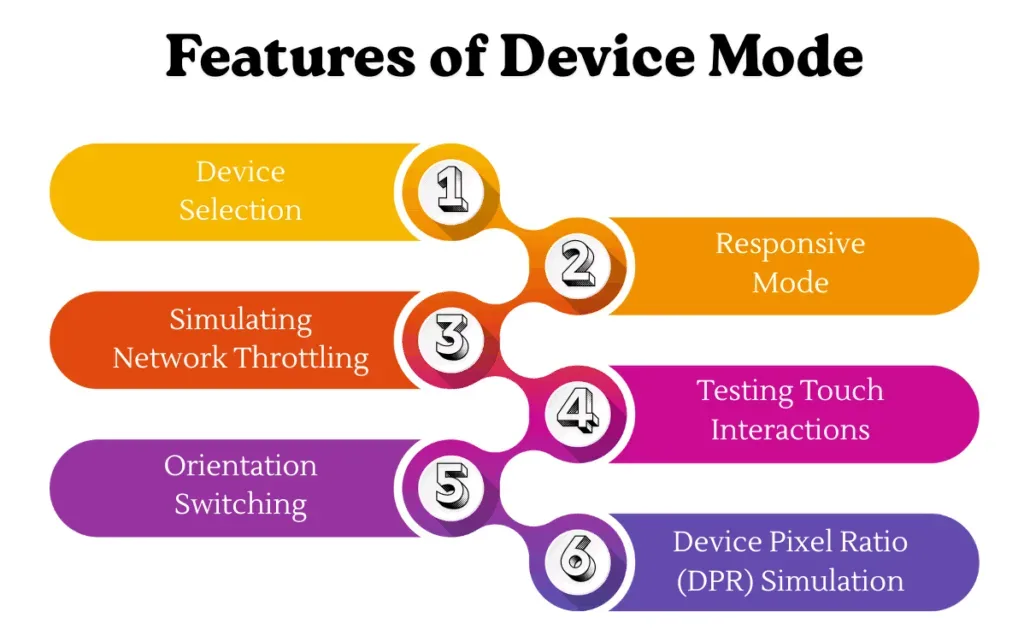
The Device Mode in Chrome DevTools, also known as mobile emulator chrome, comes packed with useful features. Let’s break them down:
1. Device Selection
Chrome DevTools provides a list of predefined devices to choose from, including popular models like:
- iPhone 14 Pro
- Pixel 7
- iPad Pro
- Samsung Galaxy S21
You can select these devices from the dropdown menu at the top of the Device Mode toolbar. The dimensions and resolution of the device will automatically apply when you chrome emulate mobile devices from the list.
Pro Tip: You can also create custom devices by clicking on Edit… > Add Custom Device to enter specific screen sizes, resolution, and user agent.
2. Responsive Mode
If you want more flexibility, select Responsive mode from the device dropdown. Responsive Mode allows you to:
- Manually adjust the screen size: Drag the viewport’s edges to resize it to your desired dimensions.
- Test breakpoints: See how the layout adjusts as you scale the viewport width up or down.
This feature, also known as chrome responsive mode, is particularly useful for testing media queries in responsive design.
3. Simulating Network Throttling
Mobile devices often operate on slower networks like 3G or constrained bandwidth. Chrome DevTools lets you throttle your network connection to chrome simulate mobile conditions:
- Open the Network dropdown in the Device Toolbar.
- Choose from preset options like Fast 3G, Slow 3G, or create a custom network profile.
- By simulating slower networks, you can ensure your website remains fast and responsive for users with poor connections.
4. Testing Touch Interactions
When Device Mode is active, the cursor behaves like a touchpoint. This means you can:
- Tap to simulate touch clicks.
- Swipe to test scrolling or carousel components.
- Zoom using multi-touch gestures (simulated with mouse scroll and modifier keys).
This is crucial for debugging mobile interactions like dropdown menus, touch sliders, or swipe gestures when using chrome emulate mobile functionality.
5. Orientation Switching
Modern devices allow users to switch between portrait and landscape modes. In Chrome DevTools:
Click the Rotate icon in the Device Toolbar to toggle between portrait and landscape.
This helps you verify if your design adapts seamlessly when the orientation changes in chrome device mode.
6. Device Pixel Ratio (DPR) Simulation
High-resolution screens like Retina displays have a Device Pixel Ratio greater than 1. Chrome DevTools simulates the DPR of devices to test sharpness and clarity:
- Select a predefined device, and DevTools will adjust the DPR automatically.
- Verify if images, icons, and text render crisply on high-DPR screens using the chrome mobile emulator.
- Chrome Simulate Mobile: How To Emulate Devices In DevTools
Debugging in Device Mode
Debugging in mobile emulation works the same as standard DevTools workflows within chrome developer tools mobile view. Here’s how to inspect elements and fix issues:
- Inspect Elements: Right-click on an element and select Inspect to view its CSS styles and layout.
- Use Console: Check for errors or logs in the Console tab.
- Analyze Performance: Use the Performance tab to profile mobile load times and identify bottlenecks.
- Debug JavaScript: Set breakpoints and debug your scripts in real-time.
Real-World Use Cases
Let’s explore common scenarios where Device Mode becomes invaluable:
- Testing Media Queries: Confirm that your website’s responsive breakpoints (e.g., 480px, 768px, 1024px) behave as expected in chrome responsive mode.
- Optimizing for Slow Networks: Simulate a slow 3G connection and optimize resource loading, image compression, and lazy-loading strategies with mobile emulator chrome.
- Testing Mobile-Only Features : Some websites have mobile-specific features, such as touch sliders or mobile navigation menus. Device Mode allows you to validate these without a physical device by using chrome simulate mobile tools.
- Cross-Device Testing: Quickly switch between devices like iPhone, Pixel, and Samsung to ensure consistent behavior across popular models using device mode chrome.
Limitations of Device Simulation
While Chrome DevTools Device Mode is a powerful tool, it’s not a replacement for real device testing—even if you heavily rely on chrome mobile developer tools. Here are a few limitations:
- Hardware Sensors: Features like GPS, accelerometer, and gyroscope cannot be fully emulated.
- Rendering Differences: The rendering engine may differ slightly from physical devices.
- Browser-Specific Bugs: Some issues only appear on real devices due to hardware or browser variations.
Conclusion
Simulating mobile devices with Chrome DevTools is a game-changer for developers. Whether you use chrome developer tools mobile view, chrome device mode, or chrome mobile emulator, it provides a fast and reliable way to test responsive designs, debug interactions, and optimize performance without relying on physical hardware.
With features like Device Mode, responsive view, network throttling, and orientation switching, you can ensure your website performs flawlessly on any screen size.
How to Analyze and Debug Memory Leaks with Chrome DevTools 2
You may also like:
- How do you optimize a website’s performance?
- Change Your Programming Habits Before 2025: My Journey with 10 CHALLENGES
- Senior-Level JavaScript Promise Interview Question
- What is Database Indexing, and Why is It Important?
- Can AI Transform the Trading Landscape?
Read more blogs from Here
Start using Chrome DevTools today to simplify your mobile development workflow and deliver exceptional user experiences!Follow me on Linkedin
Frequently Asked Questions (FAQ)
Q1: What is Chrome DevTools Device Mode?
Chrome DevTools Device Mode allows you to emulate mobile devices, screen sizes, and touch input directly in your browser. (developer.chrome.com)
Q2: Why simulate mobile devices in DevTools?
Simulating devices helps test responsive layouts, debug touch interactions, and check website performance without needing physical devices.
Q3: Can DevTools accurately simulate real devices?
DevTools simulates screen sizes, DPR, and network conditions but may not fully replicate hardware features like GPS or sensors.
Q4: How do I test different network speeds?
Use the Network tab in DevTools and select presets like Fast 3G, Slow 3G, or Offline to test performance under various conditions.
Q5: What are some advanced DevTools mobile features?
Advanced features include CPU throttling, media query testing, custom device creation, and performance analysis under simulated mobile conditions.
